Why it matters
Phones, banking and the internet can go down in a storm or a network failure, and scams always spike right after an emergency.
A few steady habits protect your household’s accounts every day, keep your document copies unreadable to anyone else, and leave useful tools on your phone and laptop when the connection drops.
What the guidance says
The first few days
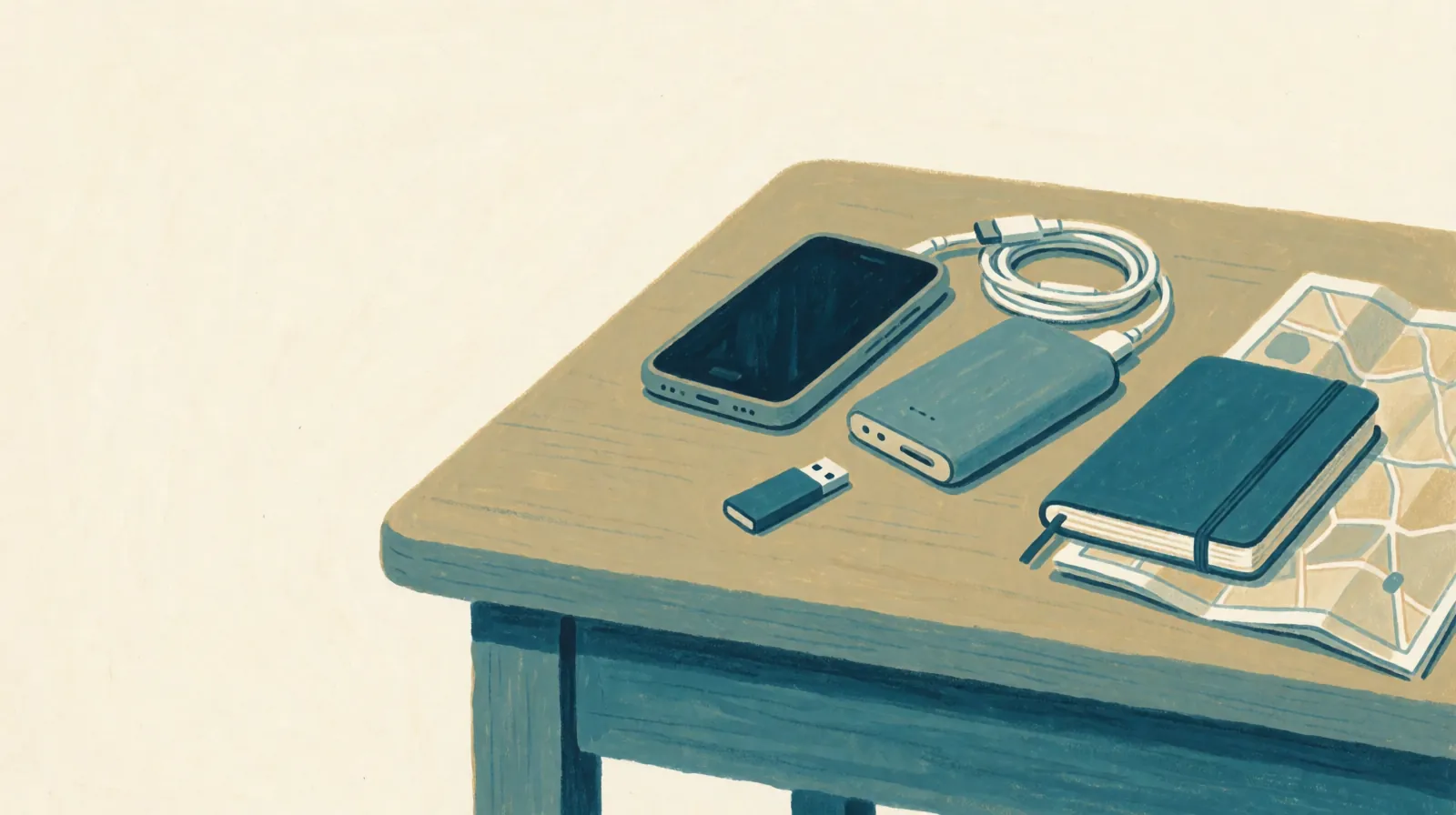
Keep your phone ready for an outage
A mobile phone charger and power bank belong in the basic kit.•
- Keep a charged power bank and the right cables with your kit.
- Save maps and key pages ahead of time. Download your region in Google Maps, and save pages for offline reading in Chrome or Safari.
- Text instead of calling when networks are congested.•
- Stretch your battery: dim the screen, close apps you aren’t using, and switch to low-power or airplane mode when you don’t need a signal.
When phones, internet or banks go down
- Use the cash and paper copies from your kit. Cash works during power and internet outages.•
- Try another network or a landline if one carrier is down.
- Go to your agreed meeting place if you can’t reach family by phone.
One power bank and your key numbers on paper already put you ahead of most outages.
Over the coming months
Passphrases, passwords and a password manager
Choose long passphrases over short, complicated passwords, and don’t change them on a fixed schedule unless there’s been a breach.•
| Option | What to aim for | When to use it |
|---|---|---|
| Passphrase | At least 4 random words and 15 characters | Anywhere that allows long entries |
| Password | At least 12 characters, mixing upper and lower case, numbers, symbols | Sites that cap length or ban spaces |
- Never reuse a passphrase or password across accounts.
- Change a password right away if it’s old and weak, reused, or part of a breach.
- Use a password manager to create and remember a unique login for every site, locked behind one strong master passphrase.•
- Keep recovery codes on paper somewhere safe, such as your lockbox. Your family plan notes where they are, never the codes themselves.
Multi-factor authentication (MFA)
MFA adds a second check when you sign in, so a stolen password alone can’t open your account.•
- Turn it on first for your email, banking, cloud storage and password manager.
- Prefer an authenticator app or a hardware security key over text-message codes where you can.
- Save the backup codes when you set it up.
Updates, anti-virus and safe browsing
- Turn on automatic updates for your operating system, browser and apps, on phones• and computers•.•
- Keep anti-virus protection on, built in or reputable, and updating itself.
- Install apps only from official stores or the publisher’s own site, and check the permissions they ask for.
- Never call a number in a pop-up that says your computer is infected.
Backups and encrypting your copies
Back up your files regularly, and encrypt sensitive data.•
- Follow the 3-2-1 rule for what matters most: 3 copies, on 2 kinds of storage, with 1 away from home or in the cloud.
- Unplug backup drives once a backup finishes.
- Turn on device encryption: a passcode on phones and tablets, and BitLocker (Windows) or FileVault (Mac) on laptops.
- Encrypt the USB stick that holds your ID and document copies, especially anything with your SIN.• Keep its passphrase in your password manager.
Phishing, crisis scams and charity fraud
Scammers use urgency, such as a fake bank alert, a delivery problem or a disaster appeal, to make you act before you think.•
- Pause whenever a message pushes you to hurry, asks for a code, or demands gift cards, wire transfers or crypto.
- Go to the site or number yourself, from your bank card or a bookmark, instead of opening a link.
- Check a charity before you give sadaqah or zakat to an appeal you don’t know. Look it up on the Canada Revenue Agency list, or give through your masjid or a charity you already know.
Optional extras
For the long term
An offline knowledge kit
Set it up while your connection works, and your phone or laptop becomes a reference library that needs no signal.
- Maps: Organic Maps, with your province downloaded.
- Encyclopedia and medical reference: Kiwix, with offline Wikipedia and WikiMed.
- Translation: Google Translate, with offline language packs.
- Your documents: encrypted copies on a USB stick, never inside this app.
- An on-device AI model, if you like. Open-weight models run on your own phone or laptop with no internet. They can be confidently wrong,• so never use one for medication doses, medical decisions or religious rulings. The workbook covers choosing an app and a model.
Test it now: turn on airplane mode for five minutes and open each one, to make sure none asks for a download before it works.
Do this now
You don’t need to set all of this up in one weekend. Start by turning on multi-factor authentication on your email and downloading an offline map of your area.
Sources (19)
- Emergency kit checklist, Government of Canada
- Make a plan, Government of Canada
- Protect your Social Insurance Number, Government of Canada
- Good money and your central bank, Bank of Canada
- Best practices for passphrases and passwords (ITSAP.30.032), Canadian Centre for Cyber Security
- Password managers, Get Cyber Safe
- Password managers security (ITSAP.30.025), Canadian Centre for Cyber Security
- Multi-factor authentication, Get Cyber Safe
- Secure your accounts and devices with multi-factor authentication (ITSAP.30.030), Canadian Centre for Cyber Security
- System updates, Get Cyber Safe
- Phones and tablets, Get Cyber Safe
- Laptops and computers, Get Cyber Safe
- Storage and backup, Get Cyber Safe
- Tips for backing up your information (ITSAP.40.002), Canadian Centre for Cyber Security
- Don't get hooked: understanding phishing to stay safe, Get Cyber Safe
- Scams and fraud, Canadian Anti-Fraud Centre
- Vehicle theft, Ottawa Police Service
- RFID blocking: What it is, how it works, and why you may need it, Norton
- Generative artificial intelligence (AI) (ITSAP.00.041), Canadian Centre for Cyber Security